If you’ve ever tried to download an app, upgrade your iCloud storage, or pay for an Apple subscription through your Apple Account and realized you need a USD card, you’re not alone.
For many Nigerians, paying for Apple services can be frustrating when your usual payment method doesn’t work. The good news is that if you have a Cleva Classic Card, you can add it to your Apple Account and use it to pay for eligible Apple services directly from your USD wallet.
Important: This guide is specifically about adding your Cleva Classic Card to your Apple Account. It is not a guide to setting up your card on Apple Pay.
Your Apple Account and Apple Pay are two different things. Since Apple Pay is not currently available in Nigeria, we don’t want you to confuse adding your card to your Apple Account with adding it to Apple Pay.
Now, let’s get into it.
What is the Cleva Classic Card?
The Cleva Classic Card is a USD virtual card that lets you spend directly from your Cleva USD wallet.
Unlike a traditional prepaid card, you don’t need to manually fund the card before every transaction. Once you have USD in your Cleva wallet, you can use your card for eligible online payments wherever Visa is accepted.
Here are some things you can use your Cleva Classic Card for:
- Spend directly from your USD wallet — no card funding or funding fees.
- Pay at 150M+ merchants across 150+ countries wherever Visa is accepted.
- Pay for subscriptions such as Apple Music, Google One, ChatGPT and more.
- Customize your card design to make it yours.
- Set transaction limits to have more control over your spending.
And because your card is connected to your USD wallet, you can spend your dollars without first converting them to naira.
How to add your Cleva Classic Card to your Apple Account
If you have a Nigerian Apple Account, you may need to make a few changes before adding your Cleva Classic Card. Follow these steps:
Step 1: Change your device region to the United States
On your iPhone, go to:
Settings → General → Language & Region → Region
Select United States as your region.
Step 2: Open your Apple Account payment settings
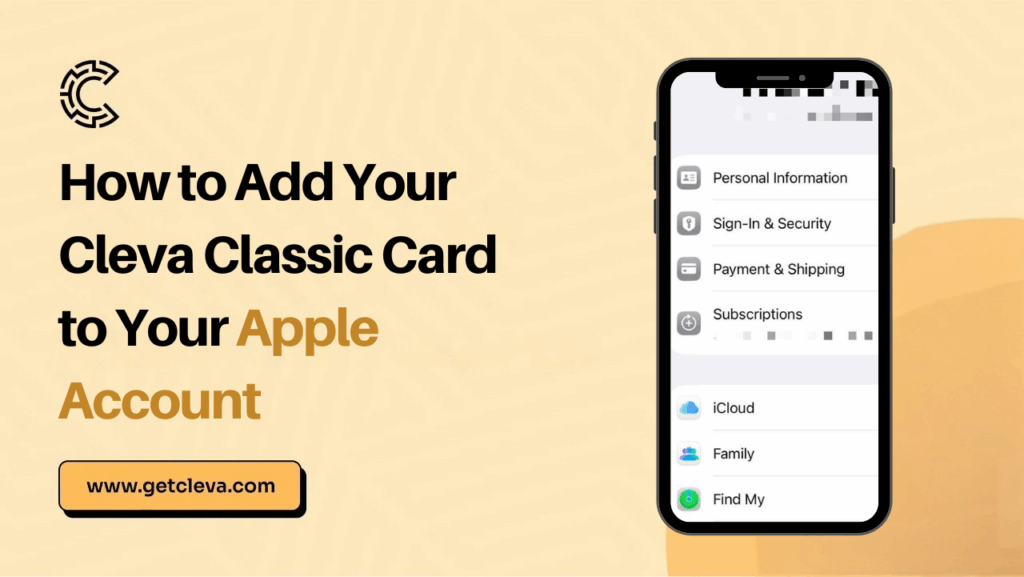
Go back to Settings and tap your name at the top of the screen.
Then select:
Payment & Shipping → Add Payment Method
Depending on your iOS version, you may be asked to authenticate with Face ID, Touch ID or your passcode.
Step 3: Enter your Cleva Classic Card details
Open your Cleva app and select your Cleva Classic Card.
Enter your:
- Card number
- Expiry date
- CVV
Make sure you enter the details exactly as they appear in your Cleva app.
Step 4: Enter your USD account address
Apple may ask for your billing address.
For this, use the bank address shown on your Cleva USD account page rather than your personal Nigerian address.
You can find your USD account details in your Cleva app.
Step 5: Add a phone number if requested
During setup, Apple may ask you to provide a U.S. phone number.
If you’re prompted for one, you can use a virtual U.S. phone number from a service such as Google Voice or another similar provider.
Step 6: Save your payment method
Once you’ve entered all the required information, review your details and tap Done or Save.
Your Cleva Classic Card should now appear as a payment method on your Apple Account.
Having trouble adding your card?
First, double-check that your card details, USD account address and other information are correct.
If you’re still seeing an error, take a screenshot of the message and contact Cleva Support so our team can help investigate the issue.
Apple Account vs Apple Pay: What’s the difference?
This is worth repeating because the two names can easily cause confusion.
Your Apple Account is the account you use to access Apple’s services, purchases and subscriptions. You can add payment methods to your Apple Account to pay for things such as apps, subscriptions and iCloud storage.
Apple Pay, on the other hand, is Apple’s digital wallet and contactless payment service. It lets you use supported cards to make payments in stores, online and in apps where Apple Pay is accepted.
So, adding your Cleva Classic Card to your Apple Account does not mean you’ve added it to Apple Pay.
And because Apple Pay isn’t currently available in Nigeria, this article focuses specifically on using your Cleva Classic Card as a payment method on your Apple Account.
If you want to learn more about adding your Cleva Classic Card to Apple Pay or Google Pay, read our dedicated guide: How to Add Your Cleva Classic Card to Apple Pay or Google Pay.
Why use the Cleva Classic Card?
The Cleva Classic Card isn’t just useful for Apple subscriptions.
It gives you a simple way to spend your USD across thousands of digital services and merchants without constantly worrying about card funding.
1. Spend directly from your USD wallet
Your Cleva Classic Card connects directly to your USD wallet. So when you make an eligible transaction, the money comes directly from your available USD balance.
No need to move money to a separate card balance first.
And because you don’t need to fund the card before spending, you don’t have to deal with card funding fees.
2. Pay globally
Your Cleva Classic Card works anywhere Visa is accepted, giving you access to 150M+ merchants across 150+ countries.
Whether you’re paying for software, subscriptions, online services or shopping on international websites, your Cleva Classic Card gives you a convenient way to spend your USD.
3. Pay for your favourite subscriptions
From Apple Music and Google One to ChatGPT and other digital services, you can use your Cleva Classic Card for eligible subscriptions.
That means you can keep paying for the tools and services you use without having to look for a new payment method every time.
4. Make your card yours
You can also customise your Cleva Classic Card design and make it feel a little more personal.
Plus, you can set transaction limits, giving you more control over how much you spend with your card.
Conclusion
With the Cleva Classic Card, you can spend directly from your USD wallet, pay for subscriptions like Apple Music, Google One and ChatGPT, and make payments at millions of merchants around the world wherever Visa is accepted.
So, if you’re looking for a simple way to pay for your Apple services with USD, adding your Cleva Classic Card to your Apple Account is a great place to start.
Share this article